
StackBlitz

StackBlitz is an instant fullstack web IDE for the JavaScript ecosystem. It's powered by WebContainers, the first WebAssembly-based operating system which boots Node.js environment in milliseconds, securely within your browser tab.
Now you can use the web to build the web.
Why should I use StackBlitz?
StackBlitz is secure, shareable, and satisfying.
There is no greater buzzkill than having to fiddle with the deployment and build tools config before you can start coding. StackBlitz takes care of all of the setup: from forking and installing dependencies to configuring build tools and hot reloading. Working on StackBlitz feels exactly like working on your local dev environment - minus the frustrating parts.
Key features:
- unmatched security: all development is happening in your browser tab, including running Node.js and git
- surprisingly fast: the entire dev environment spins up in miliseconds - even reinstalling node_modules is as simple as refreshing the page
- works online and offline: continue your work even when you lose the Internet connection midway
- your apps are always online: your apps never go to sleep and have no bandwidth limits - share the URL with as many friends, colleagues, and communities as you’d like!
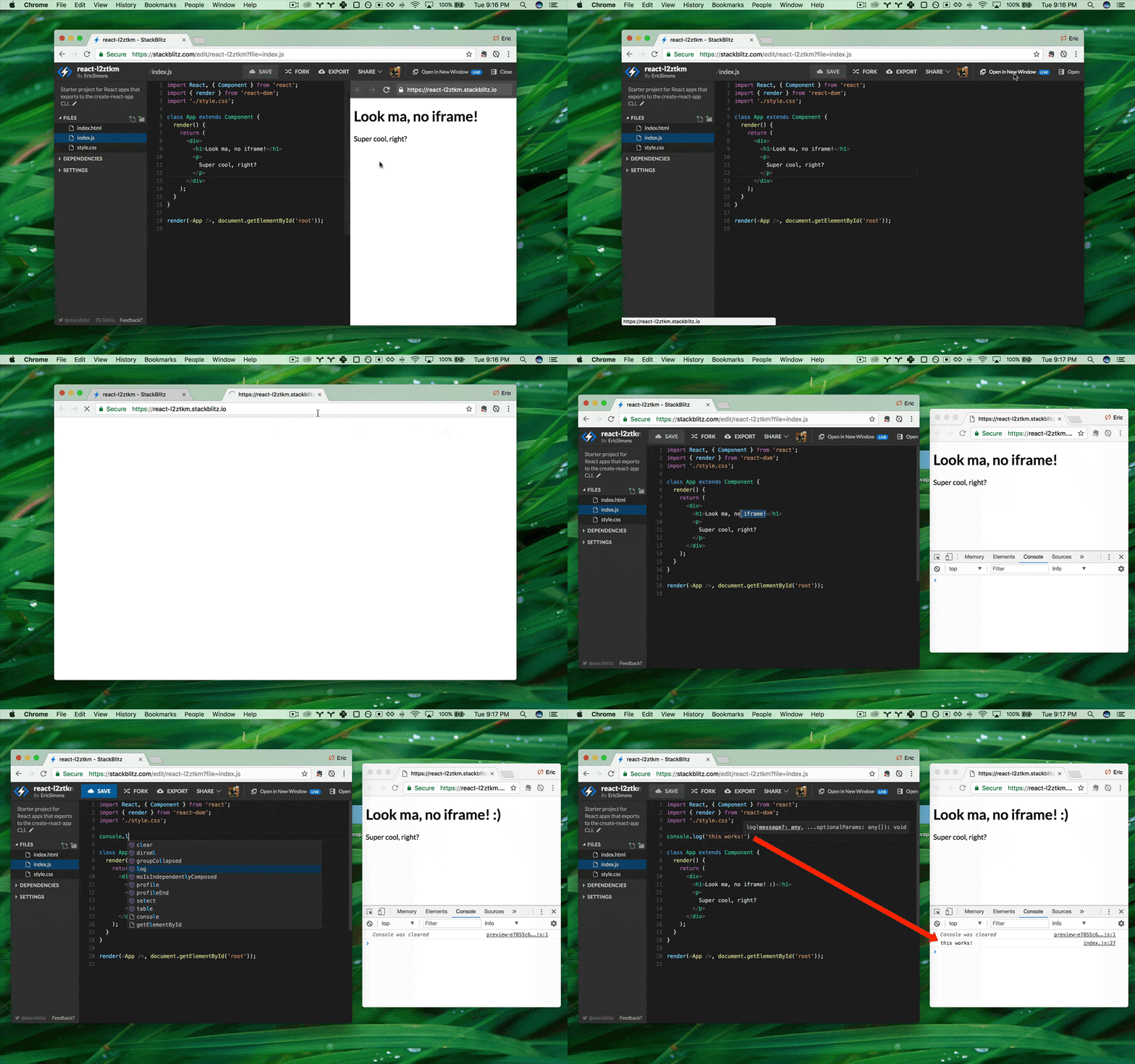
- seamless debugging with Chrome Dev Tools for both front- and backend apps!
What is StackBlitz used for?
Delightful docs
Add interactive examples from a GitHub repository or hook up an existing StackBlitz project to your docs, blog, or website. Help your users fall in love with your project right from the first try.
Interactive playgrounds
Create a project starter or boilerplate code and let your users taste the full power of your project. Wanna take this a step further? Keep it on a custom domain so your users can access it even more easily.
Quick demos
Working on a blog post or a conference talk? Create a StackBlitz project that you can quickly share. You can change the project title and the slug to make it effortless for others to reach it. And yes, it works with Medium or DEV.
Entire programming workflow
One click and our Codeflow IDE spins up a whole code editor with git integration and hot-reloading preview. Now all you need for your dev work is just a browser.
Straightforward docs editing
Every project deserves collaborative documentation. Typo fixes have never been easier - click, see what you edit as you edit, and submit a PR when you’re satisfied. All in the browser, thanks to Web Publisher.
Effective bug reproductions
Plain bug descriptions are so 2010s. Welcome to the new era of bug hunting where every report comes with its own StackBlitz reproduction so you can instantly filter out true issues from everything else. Never spin up heavy local installations for a simple bug report ever again.
Build whole educational experiences
You like the idea of running Node.js in the browser and feel inspired to build your own editor? No worries. Our WebContainers API allows you to use our technology to power your own playgrounds.
Rapid prototyping
Speed up your entire development process with realtime hot-reloading in the fastest dev environment ever made. Collaborate remotely on different devices, send and receive instant feedback, and get to market faster.
What about other online IDEs?
Unlike StackBlitz, legacy online IDEs run on remote servers and stream the results back to your browser. This approach yields few security benefits and provides a worse experience than your local machine in nearly every way.
StackBlitz solves these problems by doing all compute inside your browser. This leverages decades of speed and security innovations and also unlocks key development and debugging benefits.
Available environments
There are two kinds of environments that run projects in StackBlitz: EngineBlock and WebContainers. Each project in StackBlitz is tied to one or the other.
Depending on the environment, StackBlitz IDE includes slightly different features and User Interface elements. See an overview of both environments in the table below - or you can directly consult the section on EngineBlock or WebContainers.
| Feature | EngineBlock | WebContainers |
|---|---|---|
| Supported frameworks | Front-end | Front-end & back-end |
| Supported package managers | Turbo v1 | Turbo v2, pnpm, yarn v1 |
| Full Node.js environment | ||
| Classic editor | ||
| Codeflow IDE (beta) | ||
| Web Publisher (beta) | ||
| Shareable preview URL | ||
| Console | ||
| Terminal |
To explore these differences in practice, we took a React project and turned it into:
EngineBlock
EngineBlock is a custom runtime environment based on SystemJS, capable of running popular front-end frameworks and libraries. Depending on whether you want others to interact with the codebase or the app, you can choose to share the link to the editor or the app preview.
Please note that this environment is running a custom build process and is not compatible with Node.js.
The EngineBlock runtime works with every major browser engine.
WebContainers
As a runtime focused on providing a native Node.js environment, WebContainers are capable of running Node.js toolchains, including Webpack or Vite. Using one of these tools, you can work with any front-end framework just like you would in your local environment. WebContainers, however, also support various back-end frameworks, as well as other tools (including sqlite3!).
As for the sharing options, you can share only the editor link as the preview requires running editor. The preview is visible in the editor's window.
This environment has a terminal that supports various common commands you would run locally.
WebContainers are currently supported by Chromium-based browsers and in Firefox, with some caveats.
Our Codeflow IDE runs on the WebContainers runtime.
DE: what’s on your screen
This page provides an overview of the terms we use to describe each of the pieces of the user interface (UI) available to you in StackBlitz projects.

Overview of the StackBlitz IDE user interface elements
Menu Bar

Screenshot: Menu Bar
The Menu Bar is where you perform general operations on your StackBlitz project. It includes, from left to right:
- The StackBlitz logo. If you are logged in, it links to your dashboard. Otherwise, it links to the StackBlitz home page.
- The buttons to save, fork (create a copy of the project), and share the project. If the project is connected to a GitHub repository, you will also find the commit button here.
- The project owner's avatar which is also a link to their StackBlitz profile page.
- The project title. If you are the project's owner, you can click on it to change it.
- The project visibility icon. If you are the project's owner, you can click it to edit project information such as title, description, URL, or whether the project is public, private or secret.
- The buttons to open the app preview in a new window and to close the integrated preview.
Activity Bar

The Activity Bar allows you to select a view to display in the sidebar from the available:
- Project - opens the Project sidebar
- Search - opens the Search sidebar
- Firebase - opens the Firebase sidebar (EngineBlock projects only)
- Ports in use - opens the Ports in Use sidebar (WebContainers projects only)
- Settings - opens the Settings sidebar
Sidebar
When you open a StackBlitz project, the Sidebar defaults to the Project icon's expanded view. You can open a different view by clicking on the icons in the Activity Bar.
Project Sidebar

Screenshot: Project sidebar
The Project sidebar view includes the project description (if its author provided one), allows you to browse the project files and, if you are the project owner, to connect the project to a GitHub repository.
In the EngineBlock environment, the Project sidebar also displays the project's npm dependencies list.
Search sidebar
The Search sidebar allows you to find all the given string occurrences in your project. The search can be case-sensitive or use regular expression (regex).
Ports in use sidebar
The Ports sidebar lists all the ports opened by your app. Clicking on the port opens it in a new window. This sidebar is displayed in the EngineBlock environment only.
Firebase sidebar
The Firebase sidebar allows you to deploy a production version of your project using Firebase Hosting. This sidebar is displayed in the EngineBlock environment only.
Settings Sidebar
The Settings sidebar includes some project-level and user-level customization options. You can use it to configure your editor, set up snippets and freeze or delete the project.
In the EngineBlock environment the Settings sidebar allows you to also customize the development server running your app:
- Reload mechanism – when the code updates, it specifies if the changes be applied without reloading the preview window ("Hot reload"), using the HMR mechanism or should the preview window be reloaded ("Page reload"). "Hot reload" usually offers a better development experience but keep in mind that if your app relies on the global event handlers (like setInterval), they may persist between the updates.
- Reload trigger, which specifies what triggers the app to update in the Preview. The "Edit (auto)" option picks up updates automatically whenever you stop typing in the editor for about one second, the "Save" option only updates when you save the file, and the "Keystroke" option updates whenever you press a key in the editor.
- Clear console on reload – when the "Reload mechanism" is set to "Hot Reload", this option allows you to keep the Console messages between updates ("Disabled") or to automatically clear them ("Enabled") as if you have manually run console.clear() in your code.
Editor

Screenshot: Editor
The Editor section of the IDE displays the content of the currently selected file. You can perform several actions in the Editor's top-right side such as format code with Prettier or manage the file tabs if you have several open.
Terminal

Screenshot: Terminal
NOTE: the terminal is only available in the WebContainers projects.
The Terminal allows you to run commands, such as ls, mkdir, npm start, node index.js, and others – the same way you would on your local machine.
Preview

Screenshot: Preview
The Preview displays the application or webside that you are building in the Editor. It is like a mini browser inside your browser: it includes an address bar which displays the URL of your app, the actual app (rendered inside an iframe) and, in the EngineBlock projects, a JavaScript Console.
If you prefer to view your app in a separate window, you can use the "Open in New Window" button located above the Preview. It will close the Preview and open your app in a separate browser tab instead.
Console

Screenshot: Console
In the EngineBlock projects the Preview includes a Console. The Console outputs JavaScript errors and messages from console.log methods in your app. It is meant as a lightweight replacement of browser's DevTools. It is also useful if you are sharing a project and you want to make sure that people see these JavaScript output messages without having to tell them to open the actual DevTools.
As an example, see how the RxJS starter project uses the Console to display a "Hello, World!" message.
Sumber : developer.stackblitz.com